
The following steps assumes that Purchase Orders have been setup for the logged in app user.
Important: Please ensure that the checklist items have been completed before raising a Purchase Order.
Purchase Orders cannot be deleted via the app!
Navigate to Workflow
On the top left of the app is an icon to open the below menu.

Select the Purchase Orders tab menu item
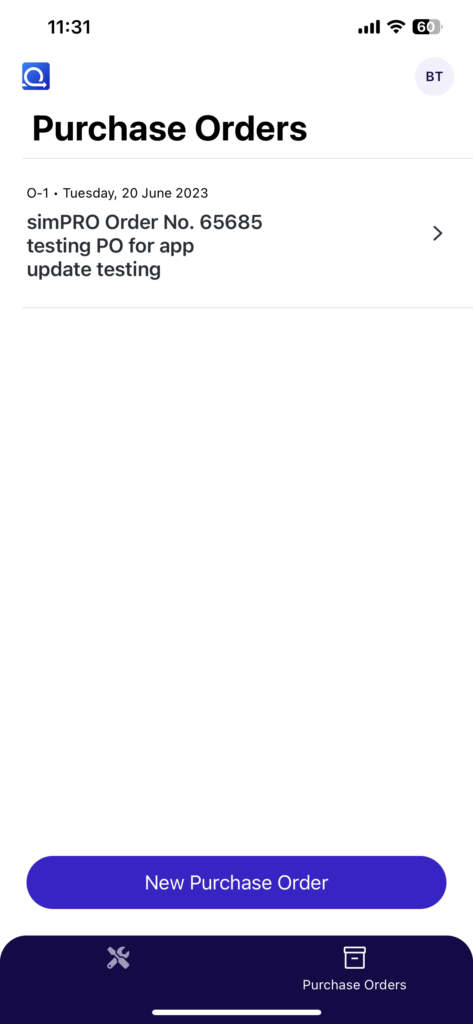
Tap New Purchase Order
Each field below is required.
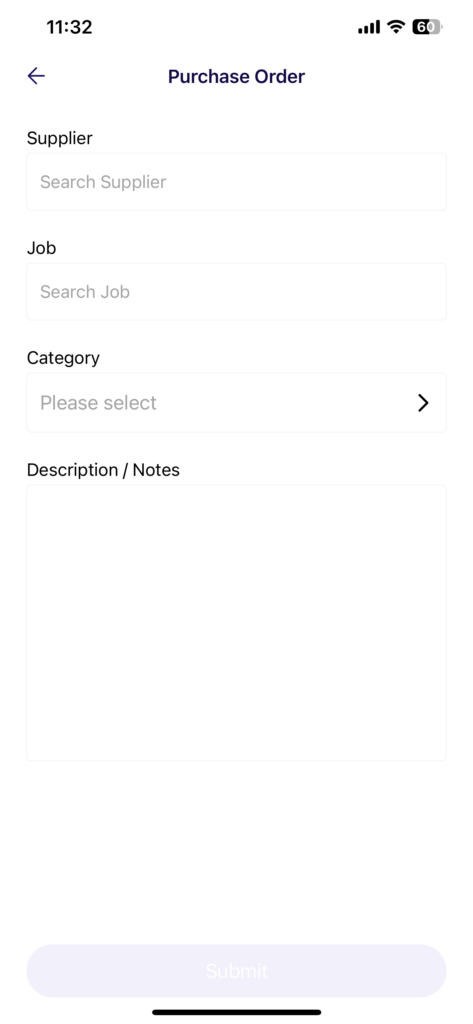
Search for supplier
Type in the supplier and tap search to start searching.
Note: For a simPRO Purchase Order to be created, this supplier must be linked to a simPRO Vendor!
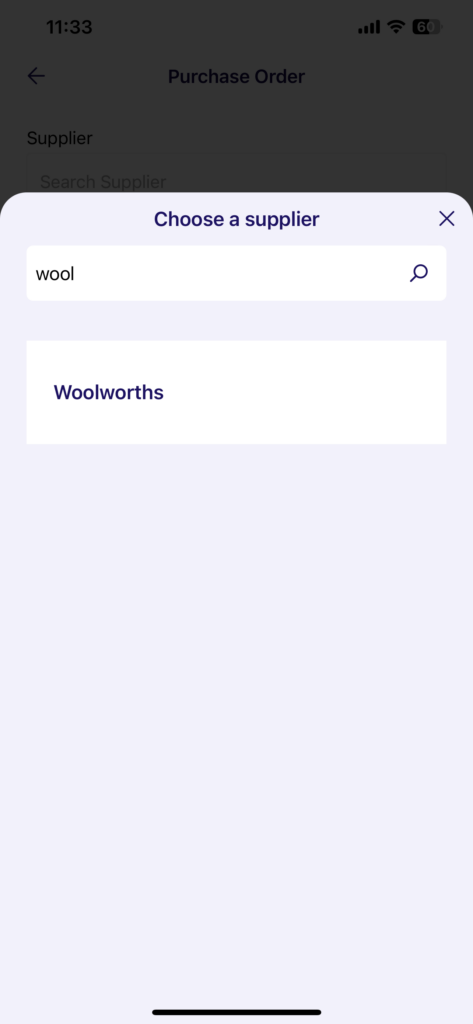
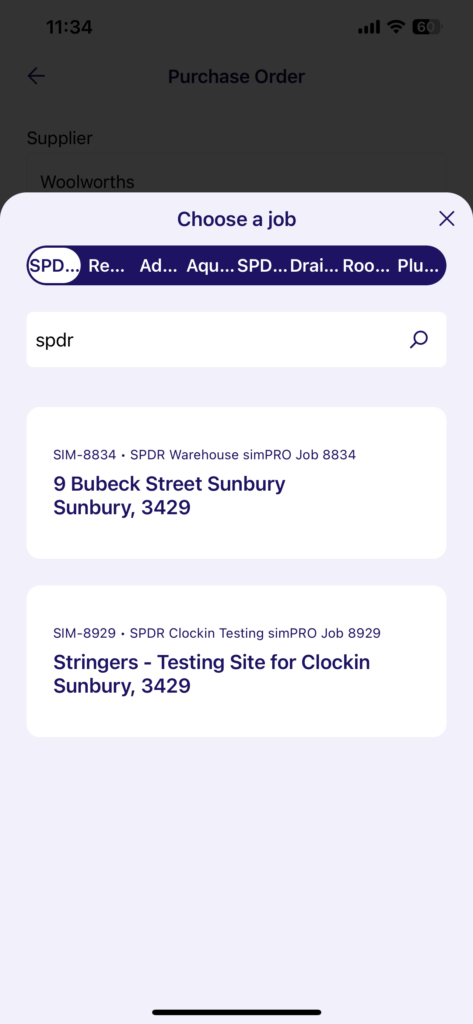
Choose a job
Type in the job and tap search to start searching.
Note: For a simPRO Purchase Order to be created, this job must be linked to a simPRO Job!
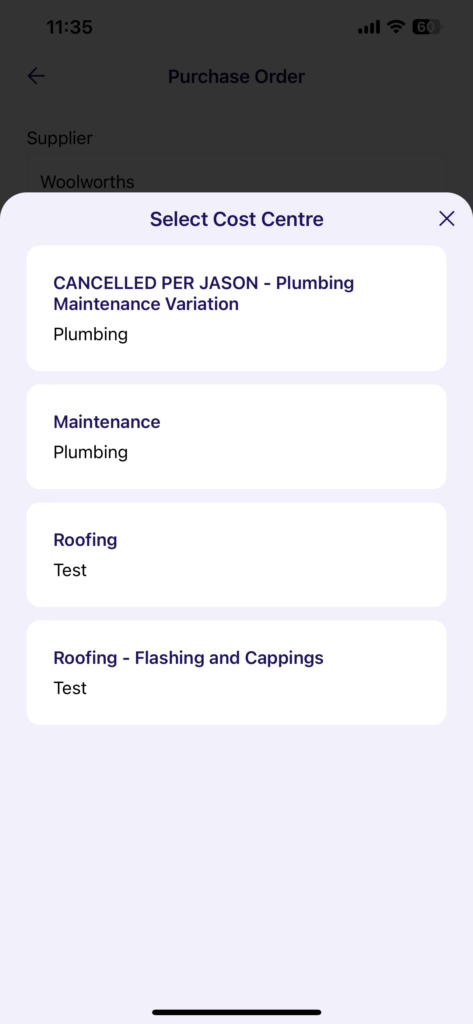
(If applicable): Choose simPRO Cost Centre
If the job is linked to simPRO, then a Cost Centre option will be made available to pick.
Note: It is optional to pick a Cost Centre, however it must be selected for a Purchase Order to be created in simPRO
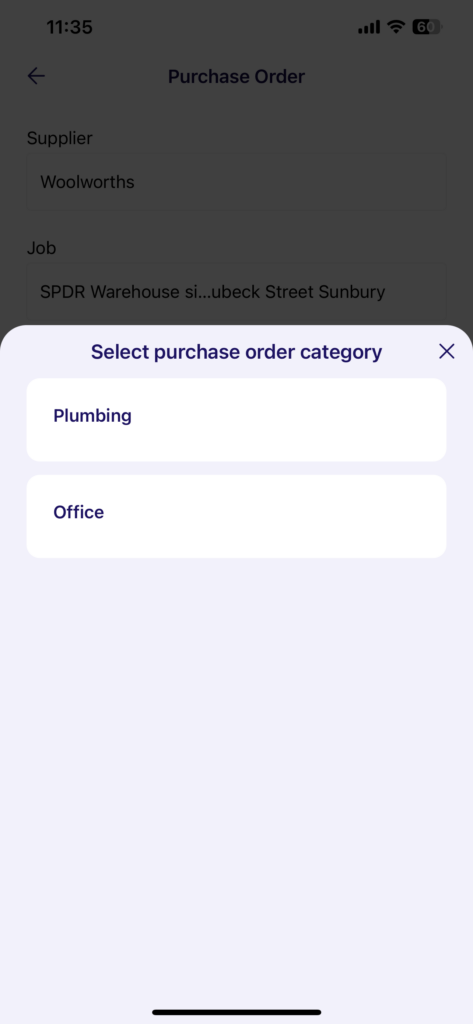
Select Purchase Order Category
Only Purchase Order Categories that have been assigned to the team will be made available for selection.
If a Category is not available, please check the Team(s) the staff is a member of and the Team(s) that the Category is assigned to. At least one Team should be the same.
Enter in a description
The purpose for the Purchase Order must be entered.
This will also be used on the simPRO Purchase Order.

Verifying Purchase Orders with simPRO
Note: This is only available for accounts with a simPRO integration set up.
If a Purchase Order is intended to be saved into simPRO, there should be a simPRO Purchase Order Number on the screen.
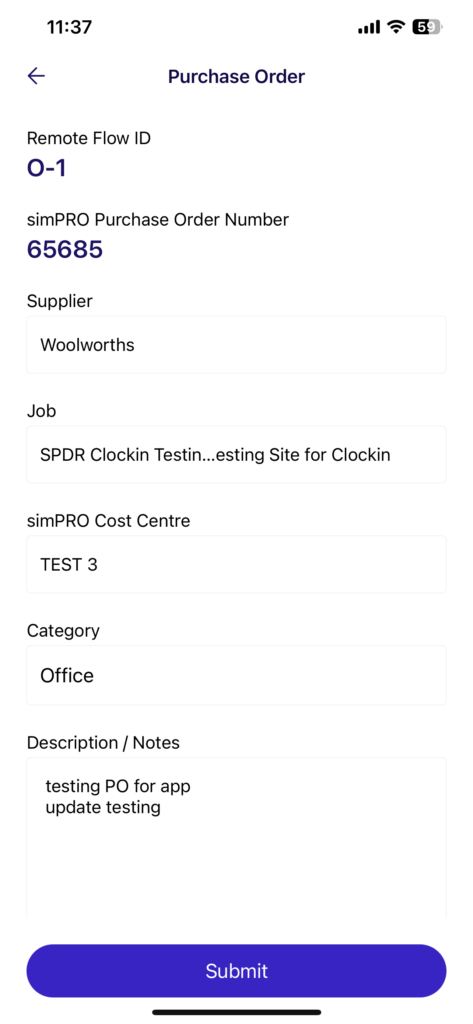
The Purchase Order will also show up in simPRO.
