Creating new Clients can be done in 2 ways:
Self-serve
The client can go through the Sign Up process via https://dashboard.remoteflow.app
Managed – create the client manually
Remote Flow staff can manually onboard a new client via the Kman Dashboard via https://dashboard.kman.software
Create the client
Once logged in, go to Clients https://dashboard.kman.software/remoteflow/clients
Click Create
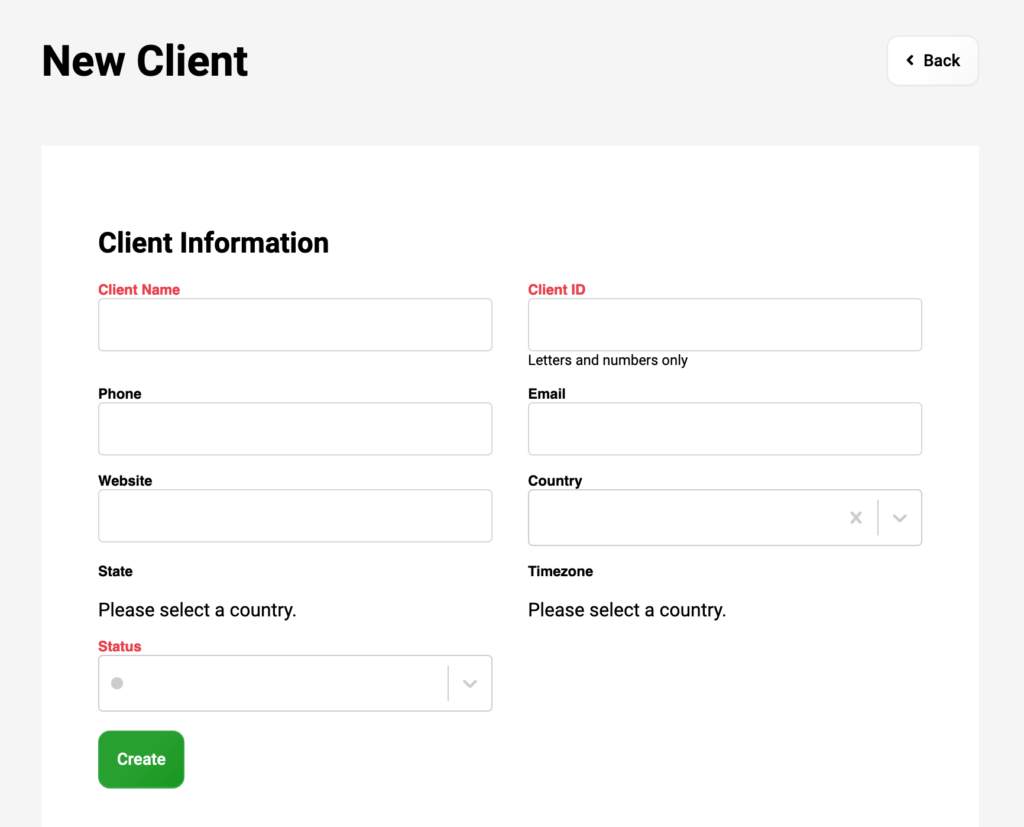
Fill in the client details, the following is required:
- Client Name
- Client ID – this is used for the client logging in via the dashboard
- Status – this is a deprecated field, select any field
Client the company
Go to Companies https://dashboard.kman.software/remoteflow/companies
Click Create
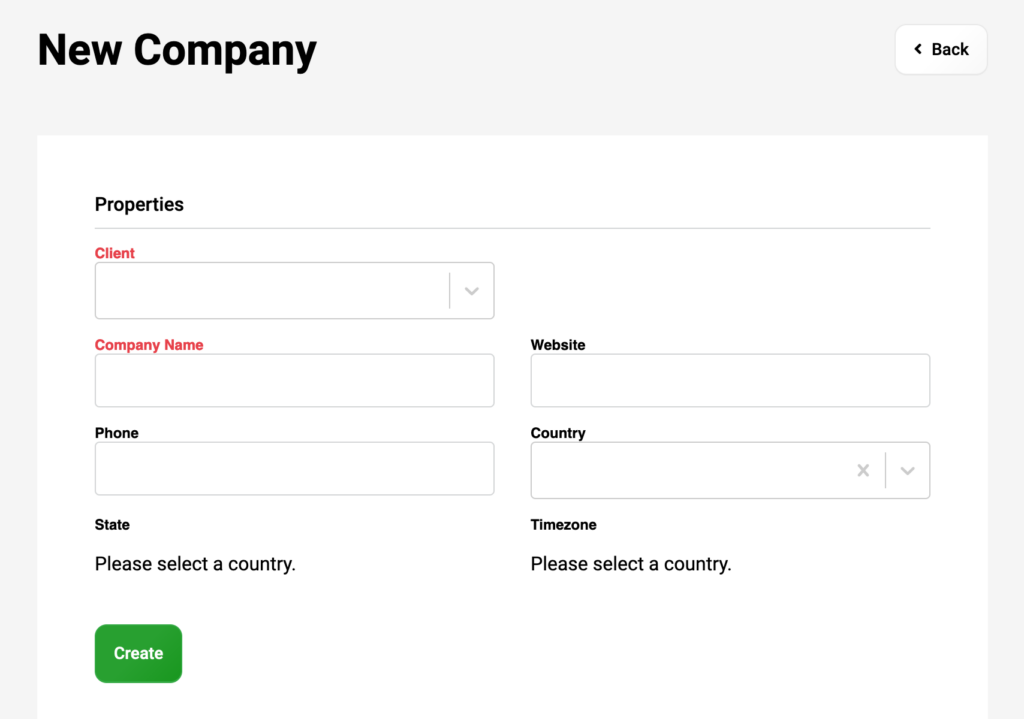
Fill in the company details.
- Client: select the client just created
- Company Name: same as the client name
- Country, State, Timezone are highly recommended
Create the first employee
Typically, this employee will be the Administrator of the dashboard account.
Go to Employees https://dashboard.kman.software/remoteflow/employees
Click Create

Fill in the employee details.
- Client: select the client just created
- Company: select the company just created
- First Name
- Last Name
- Check Active
Click Create (to save the employee)
Once the employee has been created, the login has to be set up.
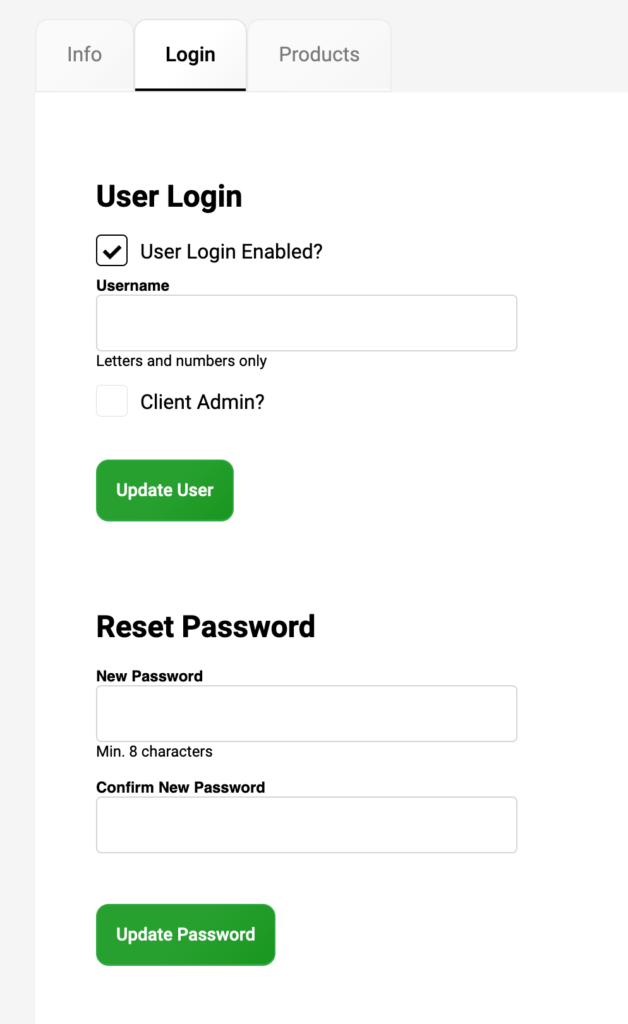
Click on the Login tab.
- Check User Login Enabled
- Enter in Username
- Check Client Admin
Click Update User to create the login. Then you can set the password.
- Enter in the new password
- Confirm the new password
Click Update Password
Employee Login Details
Once the client, company and employee(s) have been created, you need to notify the person with their login details with the following:
- Client ID (from creating the client)
- Username (from creating the employee)
- Password (from creating the employee)
Optional: Create your own management account
If you ever need to manage the account with your own login – please repeat the create employee process for yourself.
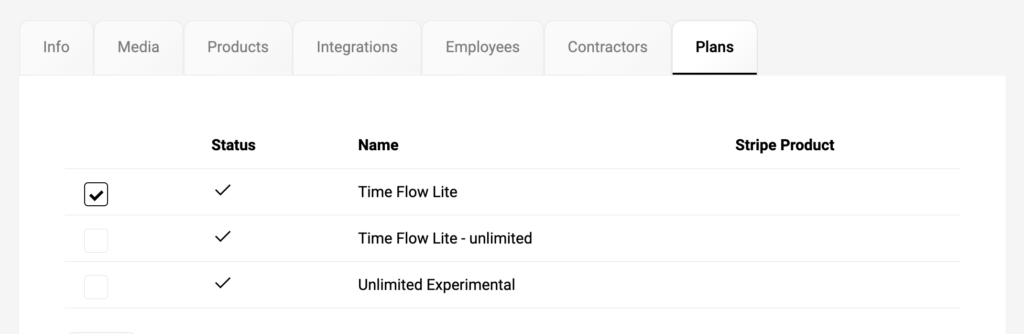
Link the User Plan
Important: To enable the menus for the client dashboard, the client needs to be linked to a User Plan!
Go to the Plans tab and link one plan to the client.